How To Grant Access On UA/Google Analytics 3

How To Grant Access On UA/Google Analytics 3

How To Grant Access On UA/Google Analytics 3

Steps to Provide Access to UA/Google Analytics 3

See below the steps for providing managerial access to an email ID that your project manager will provide:

1. Log in to your Google Analytics account: (https://analytics.google.com/)

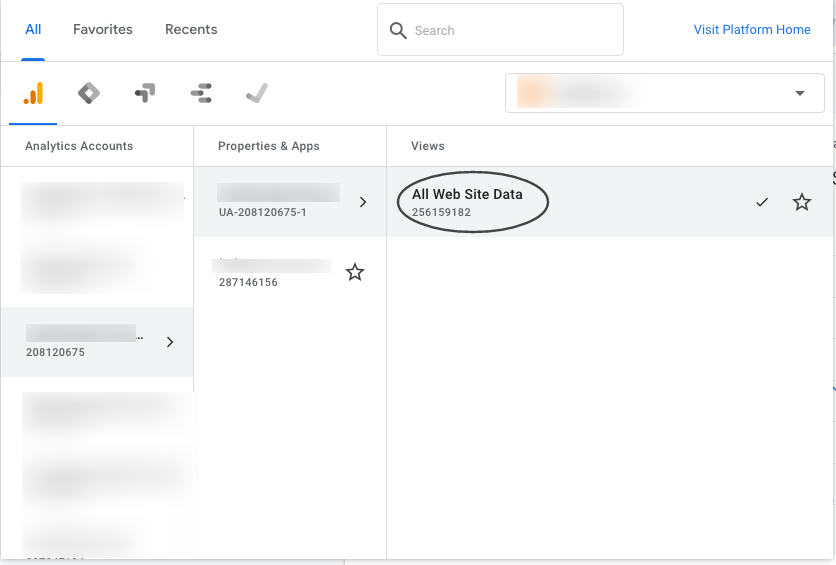
2. Search your .com (with the domain name or Google Analytics code)

3. Click on “All Website Data”
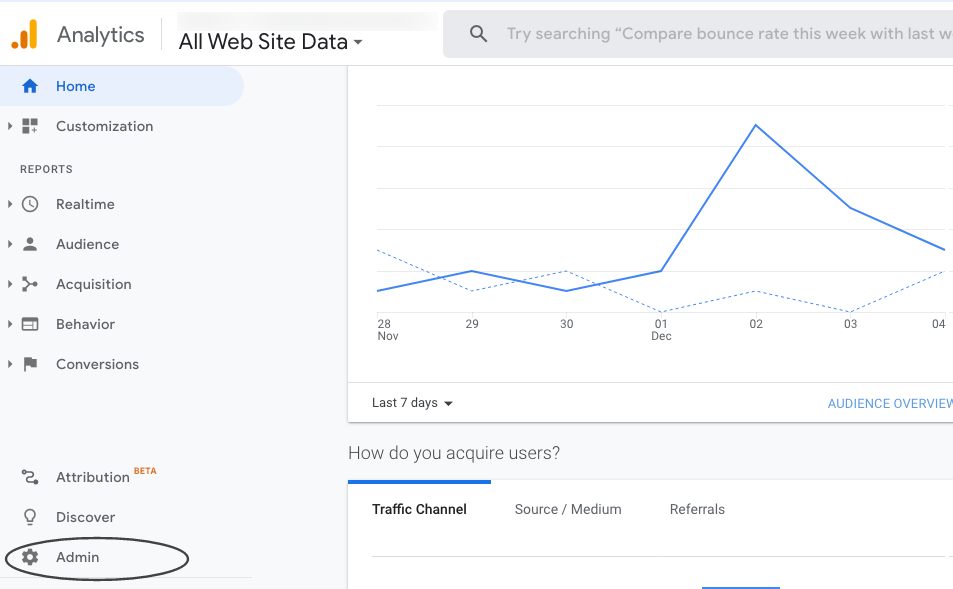
4. Click on “Admin”
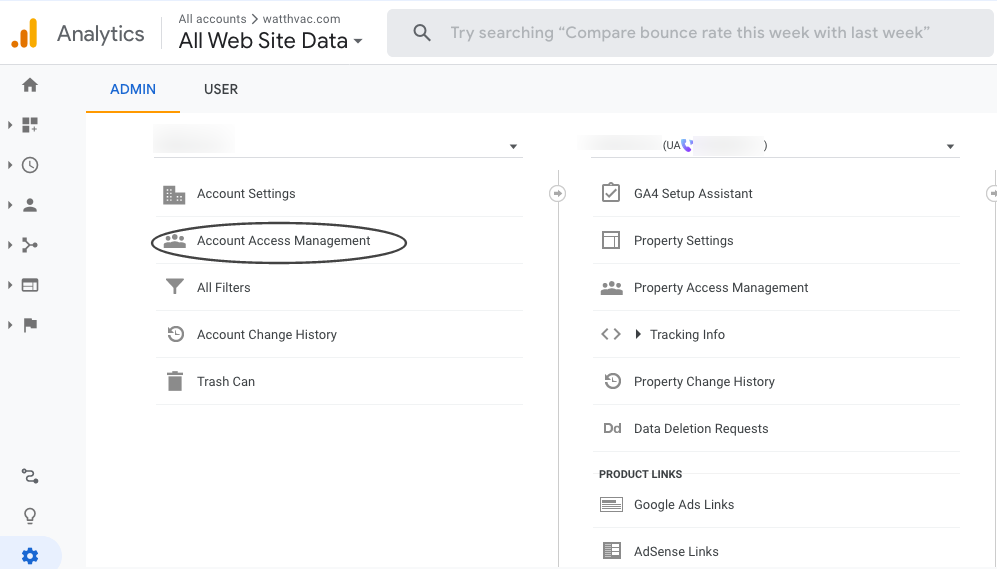
5. Click on “Account Access Management”
6. Click on “+” icon, choose “Add Users” and enter the email ID
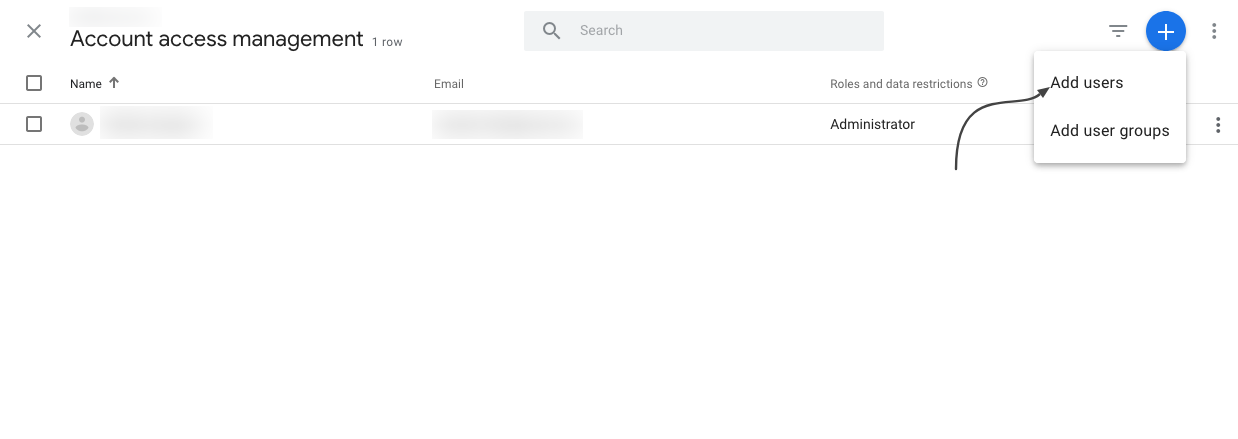
7. Full access should now be granted

For any questions, contact [email protected]

Steps to Provide Access on Google Analytics 4

Steps to Provide Access on Google Analytics 4

Steps to Provide Access to Google Analytics 4

Google Analytics 4 is replacing Universal Analytics. On July 1, 2023, all standard Universal Analytics properties will stop processing new hits. Alpha SEO is already aware of this change, and we are working to integrate this update into our dashboard.

Please follow the steps below to grant access to Google Analytics 4 (GA4) to the email ID that the project manager will provide.

1. Select the GA4 account

2. Select Admin

3.  Go to Property —> Select GA4 Account —>

4. Click On Account Access Management

5. Click on the (Blue + right top corner) button and click on Add Users

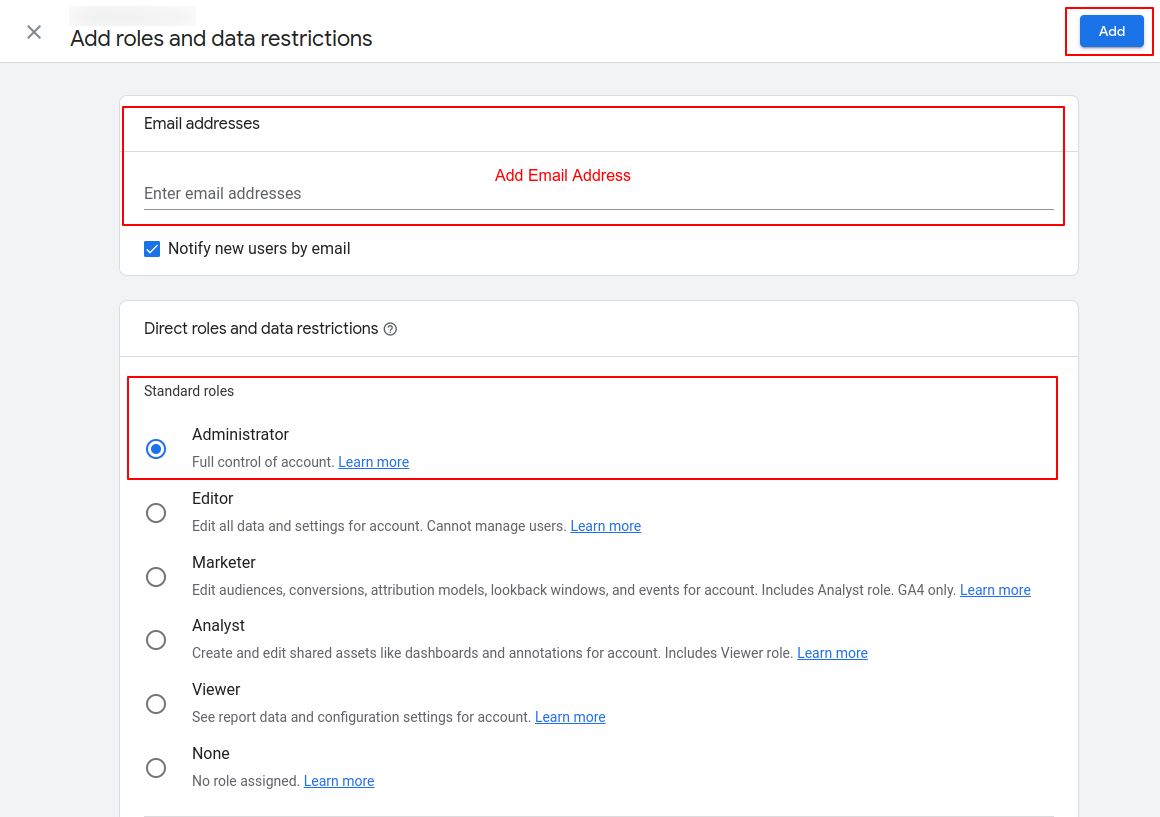
6. Add the Email ID, then select Administrator under Standard roles and click “Add”.

All set!

Please confirm with the project manager once this is done, and we will confirm access.

For any questions, contact [email protected]

How Can I Grant Access to Google Analytics with an Email ID?

How Can I Grant Access to Google Analytics with an Email ID?

Google Analytics (GA) is a great service that provides insight into how users find and interact with your website, tracking your website’s movement, visits, traffic, and ROI, among others.

You can manage the users who have access to your Google account. Said users are identified by their email addresses. Only users whose email addresses are registered in Google Accounts will be granted access.

Once you receive the request to provide access to your Google Analytics account, we’ll help you track and manage the activities on your website as part of the SEO work through our dashboard.

Below are the possible scenarios:

  1. If the website has Universal Analytics set up and you need to give us access to your email ID, the steps are here
  2. If the website has GA4 set up and you need to give access to our email ID, follow the steps here.
  3. If the website has both codes added, please follow both steps and get us access to both codes.
How to grant access to Google Business Profile to an email ID?

How to grant access to Google Business Profile to an email ID?

Google Business Profile is a robust directory created by Google that presents results on the branded search of your business. Google trusts and prefers its platforms. Therefore, it presents those first in the search results, which is why it is so important.

This type of access will allow sharing management of the Google Business Profile location account with confirmed users. Adding owners and managers lets users share the management of a listing without having to share personal account information. We will link the Google Business profile to our SEO dashboard and share valuable insights. 

Below are the steps for providing managerial access to an email ID that your project manager will provide:

  1. Log in to Google Business Profile: (http://www.google.com/business/)
  2. In the top right corner, click on “Business Profile Setting.”

This will then open a window which will look like this:

  1. Click on people and access.

  2. From here, click add


  1. Enter the email address provided to you in your onboarding email and select manager.

Finally, click “invite”, and you are all set. Inform your project manager by responding to the onboarding email.