Access and Permissions
Google Analytics 4: add us as an Administrator
Add us to your GA4 property so we can measure visits, calls and bookings from day one.
Updated 2026-11-18
Google Analytics 4 measures what visitors do on your site. Add us at the property level as an Administrator. No GA4 yet? Skip this; we set it up in your name.
Who to add: miguel@madmonkey.media (MAD Monkey Media). Our access request comes from Juan at support@madmonkey.media (client support), with Miguel on copy.
Time: about 2 minutes.
Before you start: use a computer and the Google account that already has Administrator access to the property.
We never need your password or the 6-digit codes your phone gets. You add us as a user, and you can remove us at any time.
Video walkthrough (1:16)
Steps
- Sign in to analytics.google.com and pick your property at the top.
- Click Admin (gear icon, bottom left). Under Property settings, click Property access management.
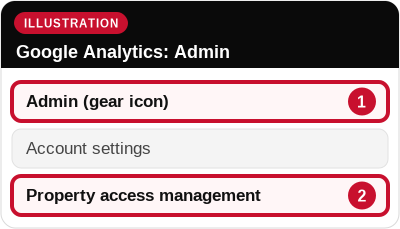
G4-01: Admin with Property access management. Drawing for guidance; your screen may look a little different. - Click the blue + at the top right, then Add users.
- Enter miguel@madmonkey.media, tick Administrator under Direct roles, and click Add.
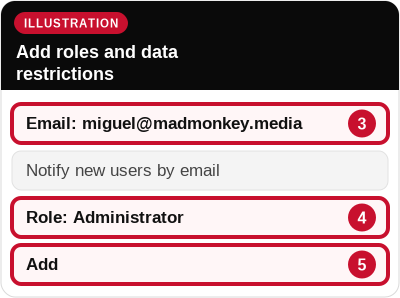
G4-02: Add roles and data restrictions with Administrator. Drawing for guidance; your screen may look a little different.
How to know it worked
Our email shows in the property access list with the Administrator role. Tell us and we check the data the same day.
If something does not work
- No Admin gear or the add button is grey: your account is not an Administrator. Ask whoever set up the site, or call us.
- You also use Search Console: see Google Search Console: add us as a Full user.
Official help
Back to Start here: your onboarding checklist.
Rather do it together?Call us and we will walk you through it in a few minutes.
Call 1 (800) 858-1639Was this helpful? Send feedback