Access and Permissions
Instagram: switch to a professional account and link your Page
Make your Instagram a Business account and link it to your Facebook Page; access then comes through Meta.
Updated 2026-11-18
Scheduled posts, Reels, insights and Instagram ads need a professional account linked to your Facebook Page. After that you share it with us in the Meta partner guide.
Time: about 3 minutes.
We never need your password or the 6-digit codes your phone gets. You add us as a user, and you can remove us at any time.
Video walkthroughA short video is coming here soon. Until then, follow the steps and pictures below.
Part 1: switch to a professional account
- In the Instagram app, open your profile and tap the menu (three lines) at the top right.
- Tap Account type and tools, then Switch to professional account, and choose Business.
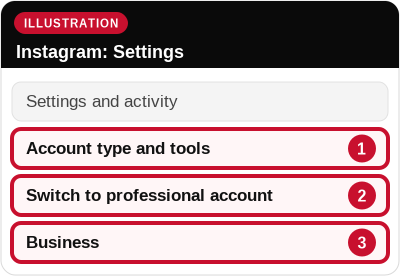
IG-01: Account type and tools with Switch to professional account. Drawing for guidance; your screen may look a little different.
Part 2: link it to your Facebook Page
- On Facebook, switch into your Page, open Settings, then Linked accounts (it may say Linked accounts or Instagram).
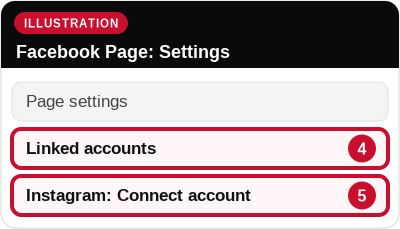
IG-02: Page settings with Linked accounts, Instagram, Connect. Drawing for guidance; your screen may look a little different. - Next to Instagram, tap Connect account and sign in to Instagram when asked (you type it, on Meta, never for us).
How to know it worked
Your Page settings show the Instagram account as linked, and it appears under Instagram accounts in Meta Business settings.
Official help
Back to Start here: your onboarding checklist.
Rather do it together?Call us and we will walk you through it in a few minutes.
Call 1 (800) 858-1639Was this helpful? Send feedback