Access and Permissions
Meta: add MAD Monkey Media as a Partner (Page, Instagram, ad account, pixel)
Share your Facebook Page, Instagram, ad account and pixel with us from Meta Business settings, without sharing a login.
Updated 2026-11-18
Adding MAD Monkey Media as a Partner in your Meta business portfolio gives us access to your Facebook Page, Instagram account, ad account and pixel (dataset) without sharing any login. You stay the owner and can remove us at any time.
Our Partner Business ID: 1933806616925231 (MAD Monkey Media)
Before you start: use a computer, and sign in to Facebook with the account that has full control of your business portfolio. About 5 minutes. The screenshots below are from our own portfolio, as an example; yours shows your business name.
Video walkthrough (1:33)
Part 1: add us as a Partner
- Go to business.facebook.com/settings and pick your business portfolio at the top left.
- In the left menu open Users, then Partners.
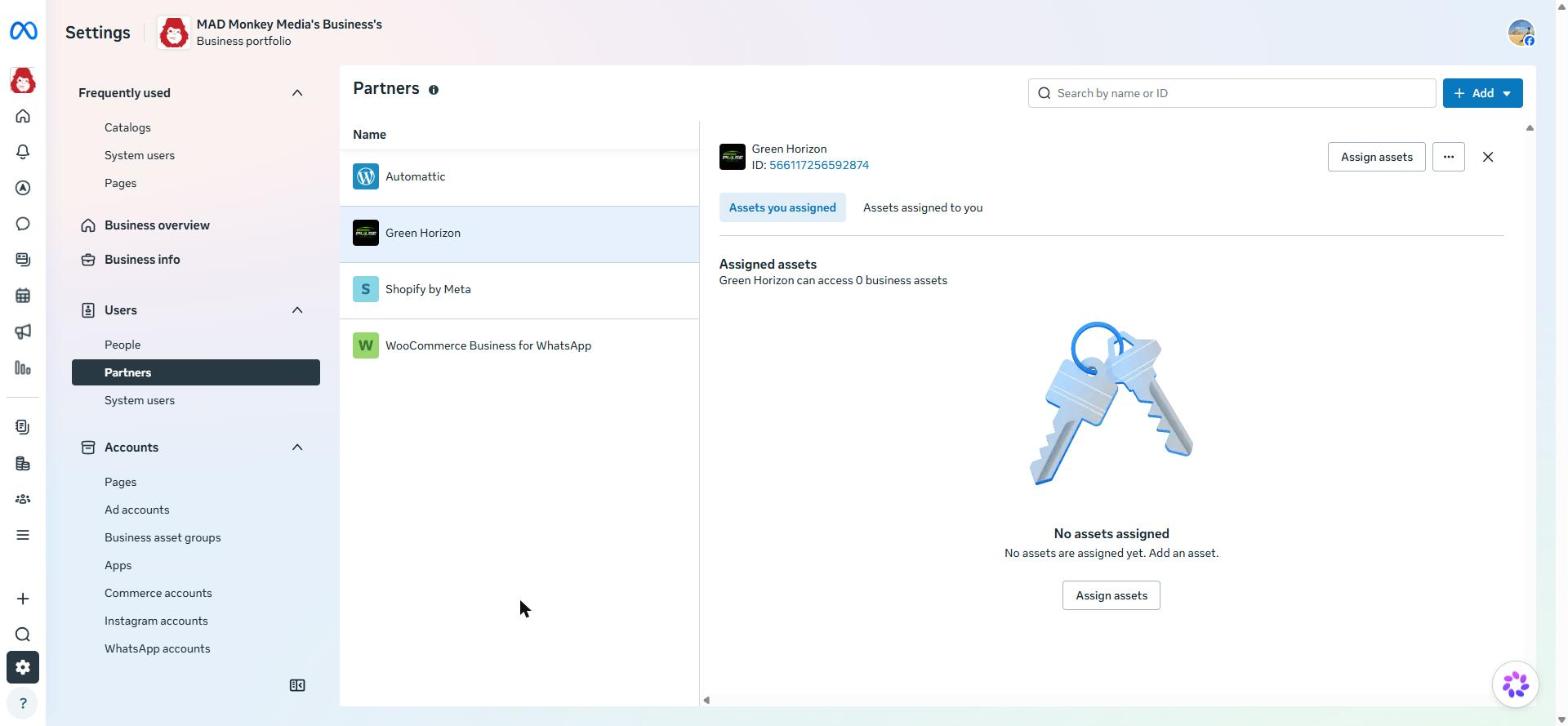
MB-01: Users, Partners list. Screenshot from our own account, shown as an example. - Click + Add, then Give a partner access to your assets.
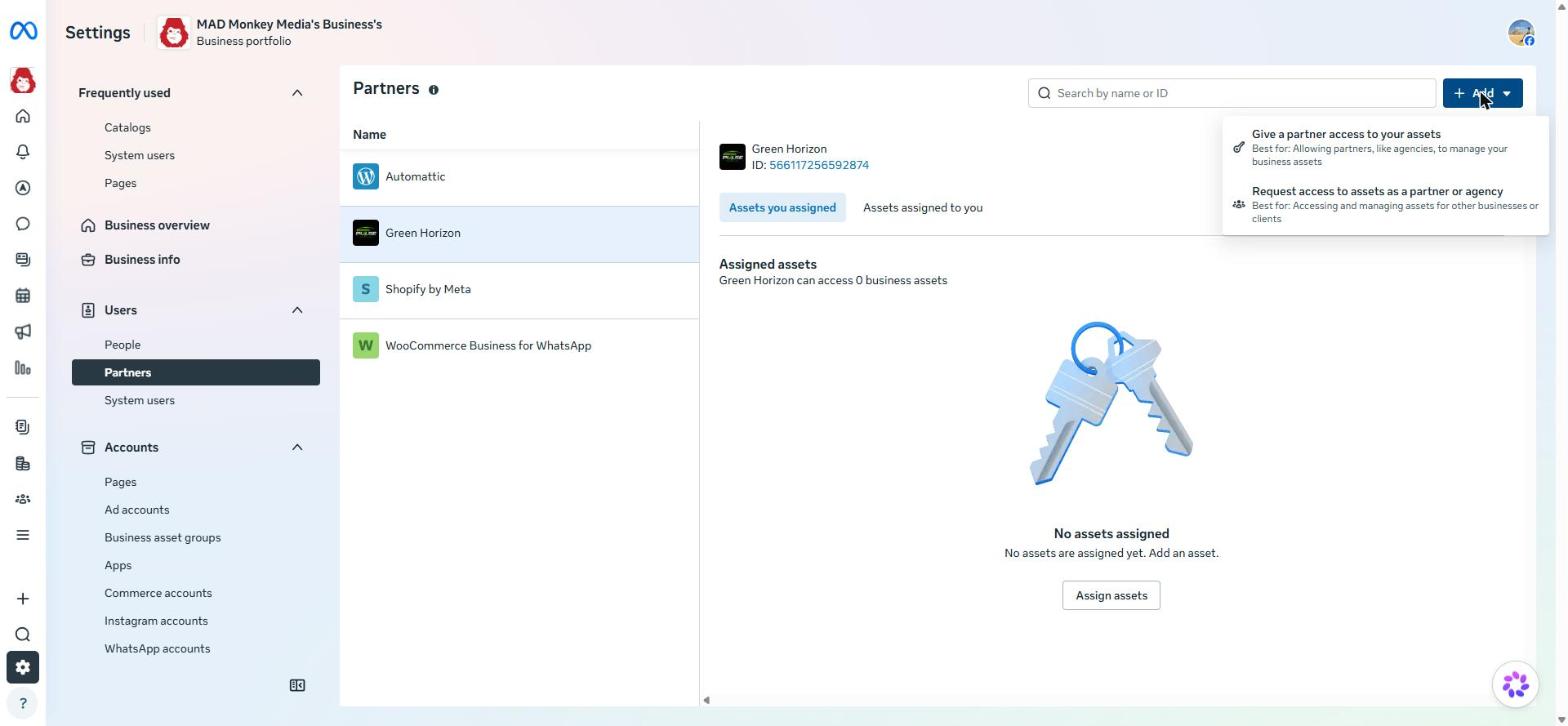
MB-02: Add button with Give a partner access to your assets. Screenshot from our own account, shown as an example. - Paste our Partner Business ID 1933806616925231 and click Next.
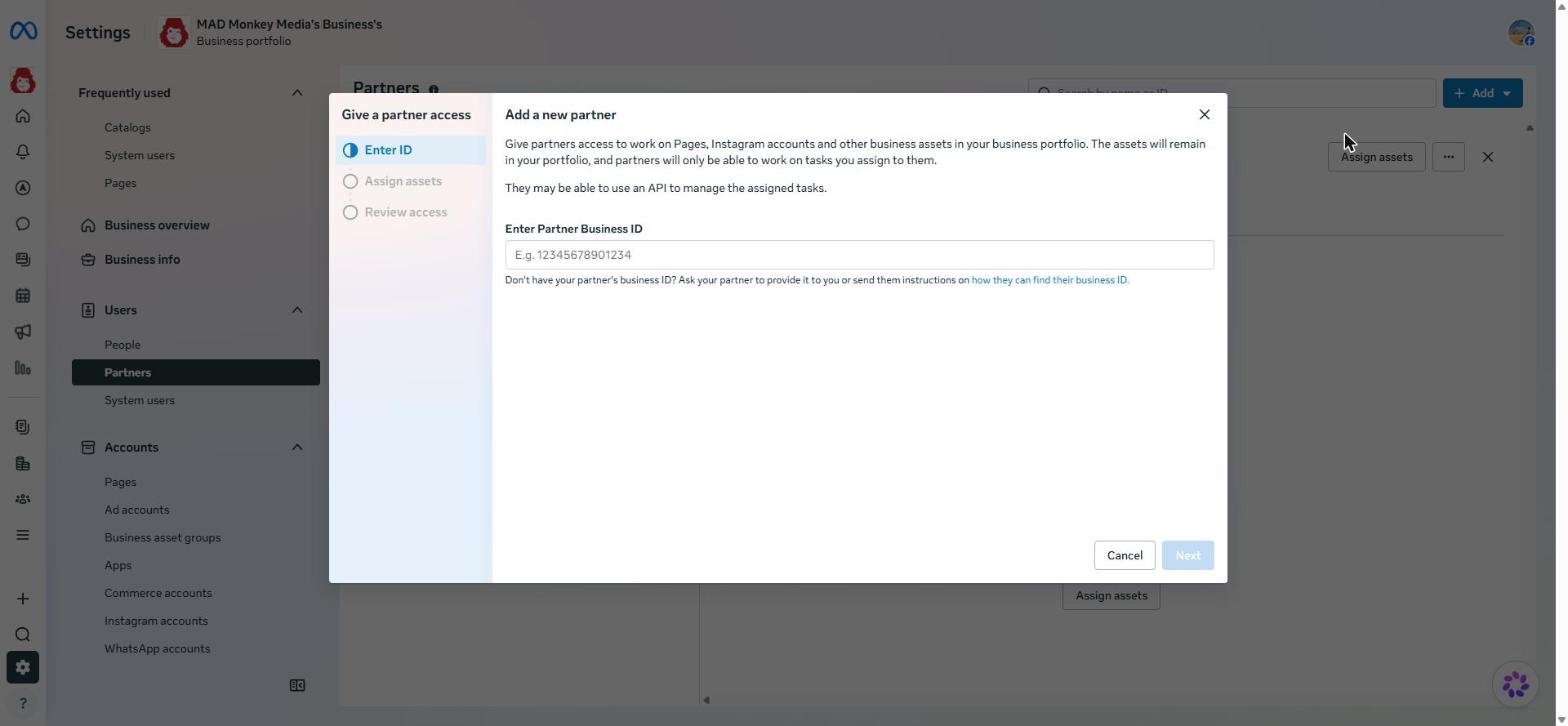
MB-03: Add a new partner dialog with the Partner Business ID field. Screenshot from our own account, shown as an example. - Pick the assets below and turn on the permissions we list, then click Save. If you prefer, skip this screen and assign each asset in Part 2.
Part 2: assign each asset
Ad account (Manage campaigns)
- Open Accounts, then Ad accounts, and select your ad account. Click Assign partner.
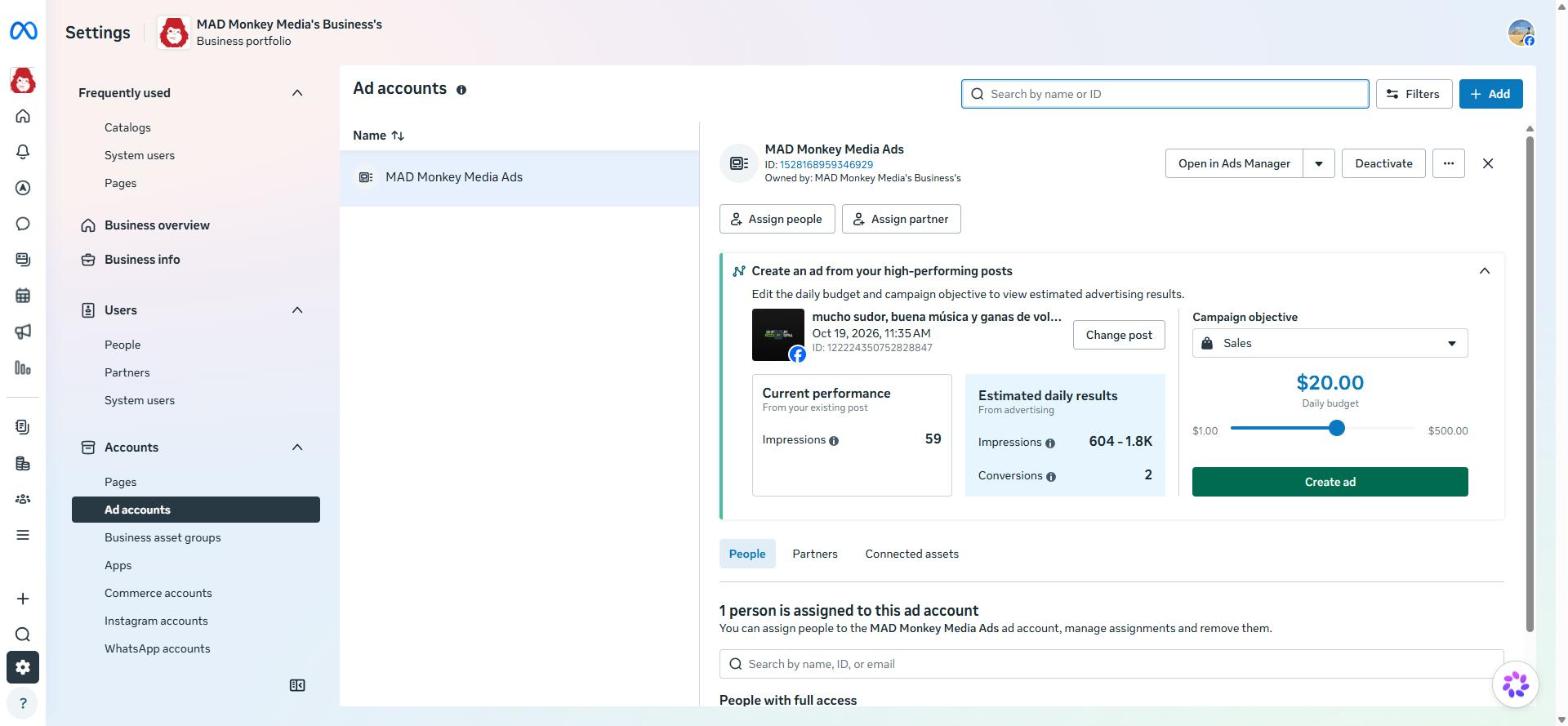
MB-04: Ad accounts with the Assign partner button. Screenshot from our own account, shown as an example. - Tick MAD Monkey Media (or choose Invite new partner and paste the ID), turn on Manage campaigns, and click Assign access. Your card stays on your account.
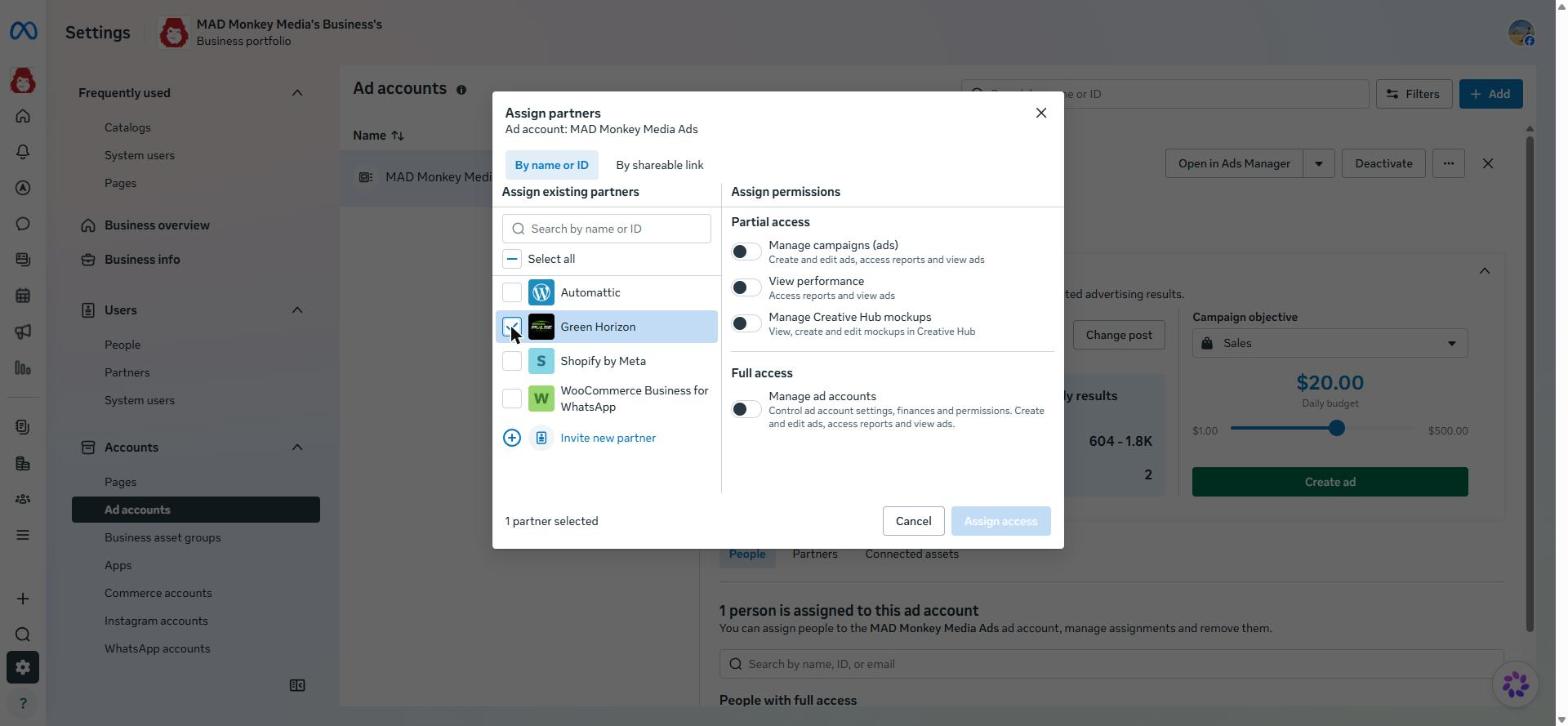
MB-05: Assign partners dialog for the ad account. Screenshot from our own account, shown as an example.
Pixel (dataset)
- Open Data sources, then Datasets and pixels, select yours, open the Partners tab, and click Assign partner. No dataset yet? Skip this; we create one in your portfolio on the onboarding call.
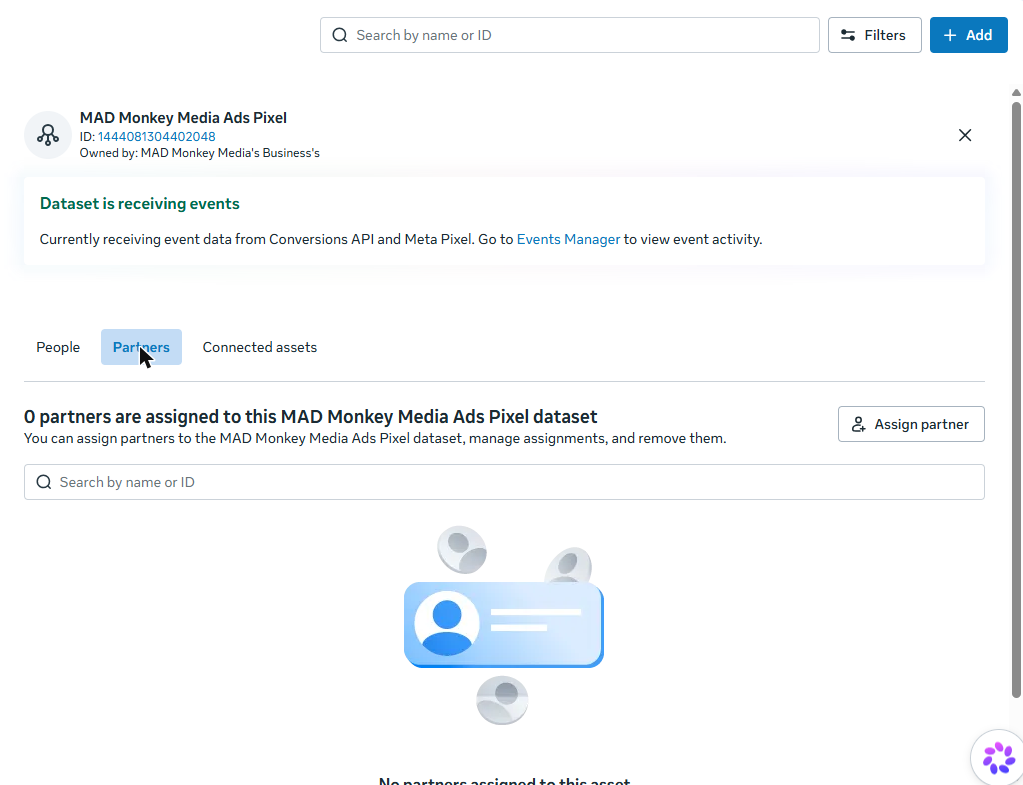
MB-06: Dataset Partners tab with Assign partner. Screenshot from our own account, shown as an example. - Tick MAD Monkey Media, turn on Manage events dataset, and click Assign access.
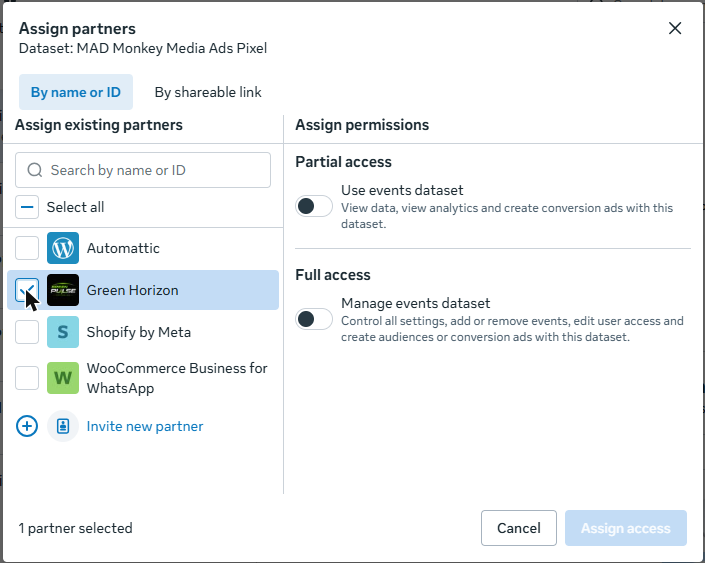
MB-07: Assign partners dialog for the dataset. Screenshot from our own account, shown as an example.
Instagram and Facebook Page
- Open Accounts, then Instagram accounts, select yours, and click Assign partner.
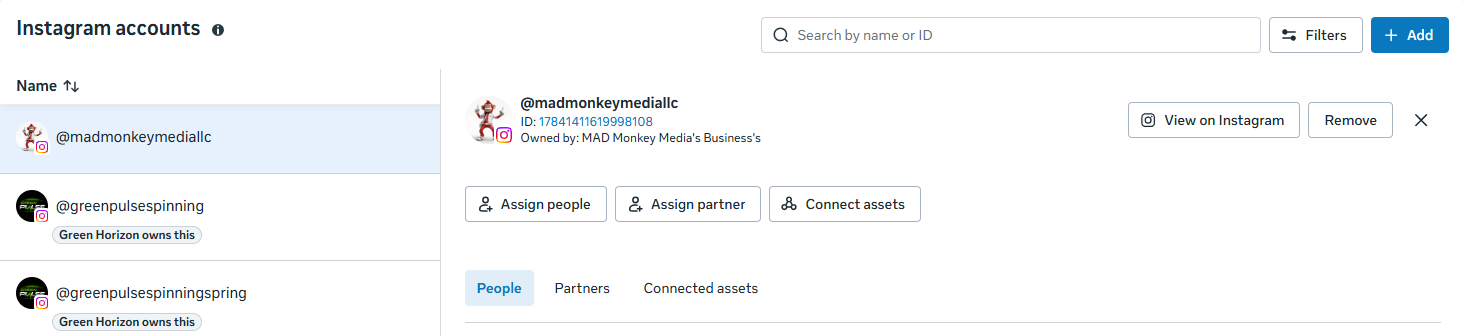
MB-08: Instagram accounts with Assign partner. Screenshot from our own account, shown as an example. - Tick MAD Monkey Media, turn on Content, Messages, Ads and Insights, and click Assign access.
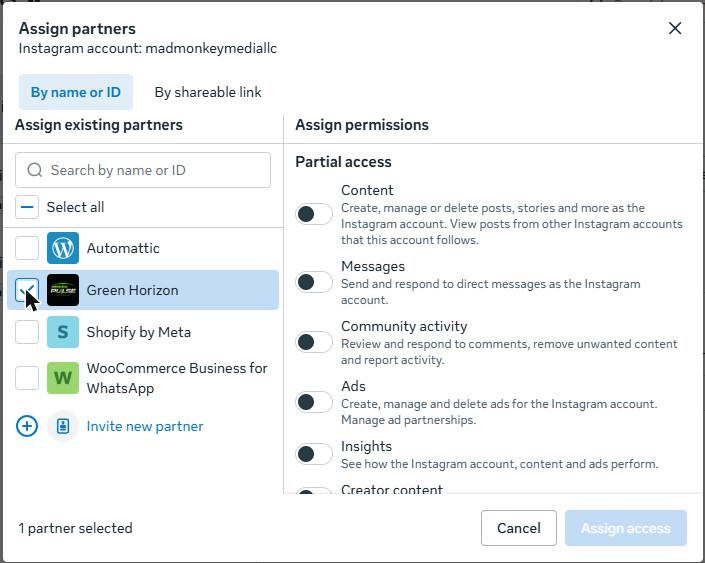
MB-09: Assign partners dialog for Instagram. Screenshot from our own account, shown as an example. - Do the same under Accounts, Pages for your Facebook Page (Content, Messages, Ads, Insights).
How to know it worked
Under Users, Partners you see MAD Monkey Media with the assets you shared. Send us a quick screenshot of that screen and we confirm from our side.
If something does not work
- No business portfolio, or your Page is not in one: call us. We send you a request instead, so you only tap Approve.
- Two Facebook Pages: share the one guests use, and tell us about the other so we can help clean it up.
- Instagram not listed: connect Instagram to your Facebook Page first (Page settings, Linked accounts).
- Only Page access, no portfolio? Follow Facebook Page access instead.
Official Meta help
- Meta Business Help Center (search "add a partner")
- Meta Business settings
Rather do it together?Call us and we will walk you through it in a few minutes.
Call 1 (800) 858-1639Was this helpful? Send feedback