Access and Permissions
Bing Places: add us as a user (or let us import from Google)
Keep your Bing and Microsoft Maps listing right: add us as a user, or let us import your Google profile.
Updated 2026-11-18
Bing Places feeds Bing search, Microsoft Maps and some car and voice assistants. Once we manage your Google Business Profile we can often import it into Bing Places in one step.
Who to add: miguel@madmonkey.media (MAD Monkey Media). Our access request comes from Juan at support@madmonkey.media (client support), with Miguel on copy.
Time: about 3 minutes.
We never need your password or the 6-digit codes your phone gets. You add us as a user, and you can remove us at any time.
Video walkthroughA short video is coming here soon. Until then, follow the steps and pictures below.
Steps
- Sign in at bingplaces.com with the account that owns the listing.
- Open Settings and look for Users or Manage users. Add miguel@madmonkey.media and save.
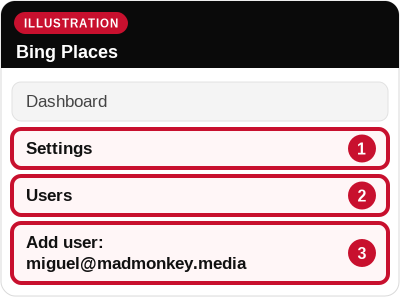
BP-01: Bing Places settings with Users. Drawing for guidance; your screen may look a little different. - No listing yet, or cannot find Users? Tell us. With your Google profile access we import it for you.
Official help
Back to Start here: your onboarding checklist.
Rather do it together?Call us and we will walk you through it in a few minutes.
Call 1 (800) 858-1639Was this helpful? Send feedback