Domain and DNS: where your domain lives and how to share access if needed
Tell us your domain company, and only if we ask, share limited access on GoDaddy, Cloudflare, Namecheap or others.
Updated 2026-11-18
Your domain (for example yourbusiness.com) is registered with a company like GoDaddy, Namecheap, Cloudflare or Squarespace. We sometimes need to add one small record there, for example to verify your site with Google or Meta. Most of the time you do not need to share anything.
Video walkthrough (1:28)
Step 1: tell us where your domain lives
Just send us the name of the company you pay for your domain (check your email for a renewal receipt). That is often all we need: we send you the exact record and you, or your web developer, paste it in.
Step 2 (only if we ask): share access
GoDaddy
- Sign in, open your name at the top right, then Account Settings, then Delegate Access.
- Click Invite to Access, enter our name and miguel@madmonkey.media, choose Products, Domains & Purchase, and click Invite.
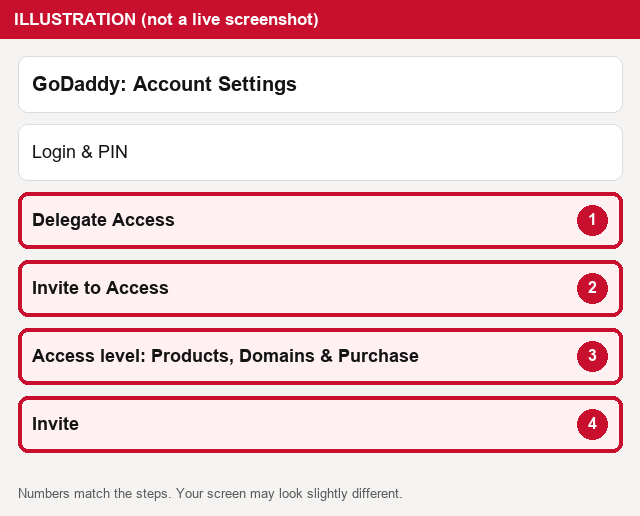
DN-01: GoDaddy Delegate Access invite. Illustration for guidance (not a live screenshot).
Cloudflare
- Sign in, open Manage Account, then Members, and click Invite.
- Enter miguel@madmonkey.media, choose a DNS role limited to your domain, and continue.
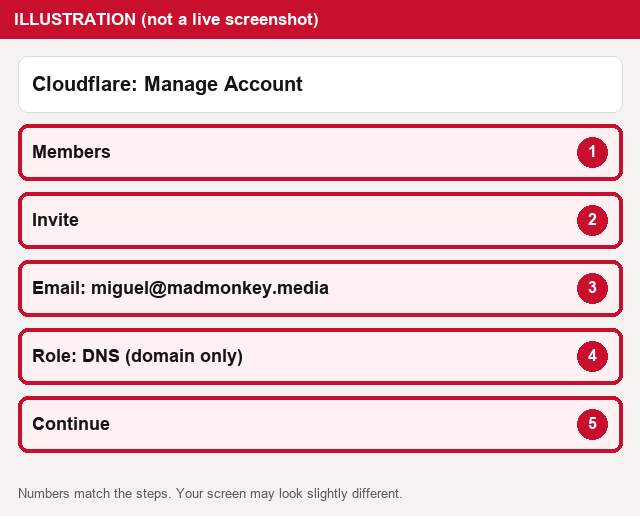
DN-02: Cloudflare Members invite with DNS role. Illustration for guidance (not a live screenshot).
Namecheap
- Open Domain List, click Manage next to your domain, then Sharing & Transfer.
- Under Share Access, enter miguel@madmonkey.media and grant access.
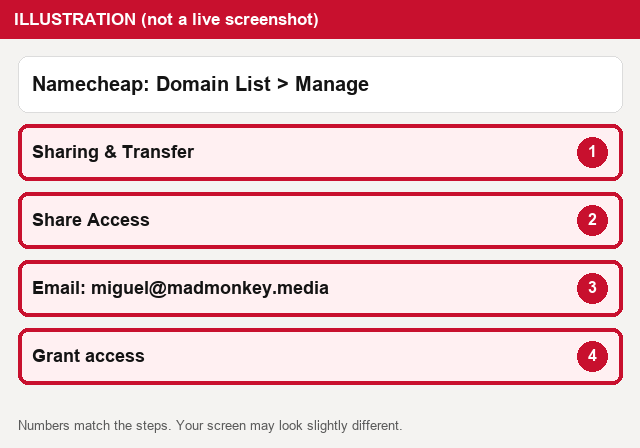
DN-03: Namecheap Share Access. Illustration for guidance (not a live screenshot).
Squarespace Domains or another company
Look for Permissions, Users or Delegate access on the domain. If you cannot find it, call us and we do it together in a few minutes.