Google Ads: accept our manager link or add us as a user
Keep your Google Ads account and card in your name, and give us access through our manager account.
Updated 2026-11-18
Your Google Ads account stays in your name with your card on it. We manage it from our Google Ads manager account. You either accept our link request, or invite us as a user. Both take about 3 minutes.
Video walkthrough (1:10)
No Google Ads account yet?
Create it yourself at ads.google.com with your business Google account, and add your business card under Billing. If Google pushes you to build a campaign first, choose Switch to Expert Mode, then Create an account without a campaign. We build the campaigns.
Option 1: accept our link request (best)
- We send a link request to your Google Ads customer ID (the 10-digit number at the top right of Google Ads). Send us that number.
- Sign in to ads.google.com. Open Admin (gear icon in the left menu), then Access and security.
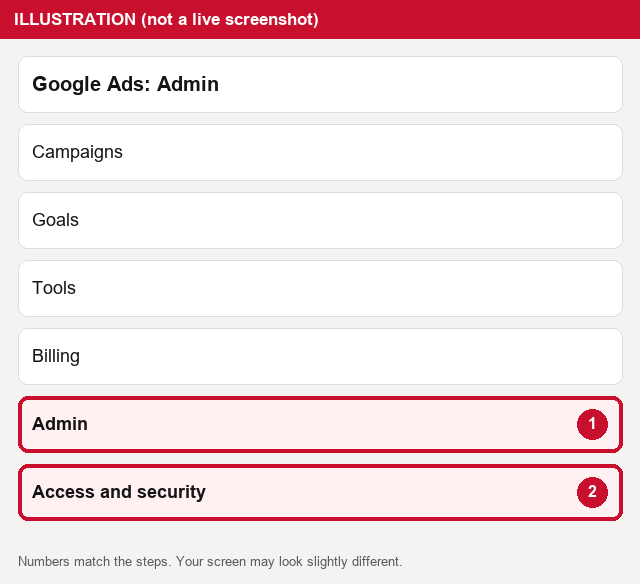
GA-01: Admin menu with Access and security. Illustration for guidance (not a live screenshot). - Open the Managers tab. You see MAD Monkey Media (939-686-9405). Click Accept.
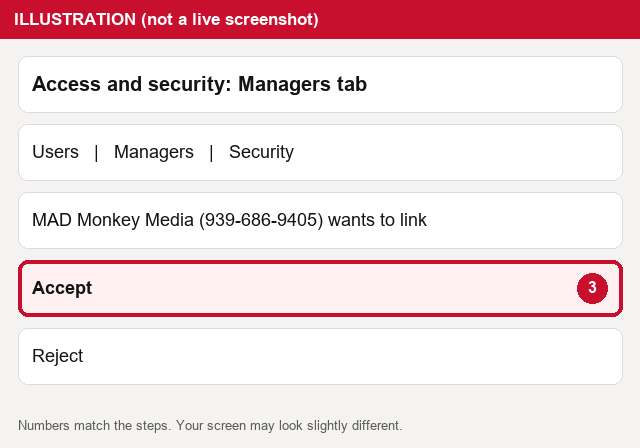
GA-02: Managers tab with our link request and Accept. Illustration for guidance (not a live screenshot).
Option 2: invite us as a user
- In Admin, Access and security, stay on the Users tab and click the blue +.
- Enter miguel@madmonkey.media, choose Admin access, and click Send invitation.
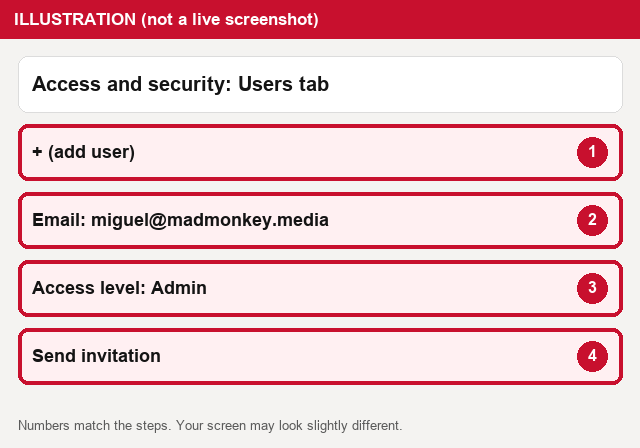
GA-03: Add user with email, Admin access and Send invitation. Illustration for guidance (not a live screenshot).
Billing stays with you
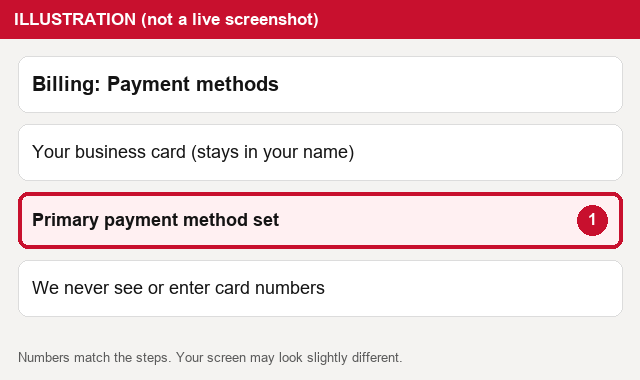
Under Billing, Payment methods, your business card is the primary payment method. Google bills ad spend to you at cost. We never see or enter card numbers.