Access and Permissions
Squarespace: invite us as a contributor
Invite us under Permissions with the Administrator role so we can add tracking and edit pages.
Updated 2026-11-18
Squarespace contributors get their own login to your site. Administrator lets us edit pages, add code injection for tracking, and see analytics.
Who to add: miguel@madmonkey.media (MAD Monkey Media). Our access request comes from Juan at support@madmonkey.media (client support), with Miguel on copy.
Time: about 3 minutes.
We never need your password or the 6-digit codes your phone gets. You add us as a user, and you can remove us at any time.
Video walkthroughA short video is coming here soon. Until then, follow the steps and pictures below.
Steps
- Sign in at squarespace.com and open your site.
- Open Settings, then Permissions and Ownership (it may say Permissions).
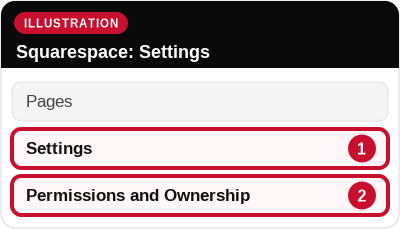
SQ-01: Settings with Permissions and Ownership. Drawing for guidance; your screen may look a little different. - Click Invite contributor, enter our name and miguel@madmonkey.media, choose Administrator and click Invite.
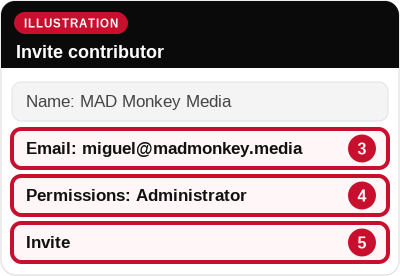
SQ-02: Invite contributor with Administrator permission. Drawing for guidance; your screen may look a little different.
How to know it worked
Permissions lists us as Pending, then as Administrator after we accept.
If something does not work
- Your plan limits contributors: tell us; we can work with Website Editor plus Analytics, or your developer can paste our code.
Official help
Back to Start here: your onboarding checklist.
Rather do it together?Call us and we will walk you through it in a few minutes.
Call 1 (800) 858-1639Was this helpful? Send feedback